
ChatGPT Can Act in Your Reps' Signed-In Browser. Write the Allowlist First.
Three decisions come before anyone turns it on: which sites stay read only, which actions wait for a human, and how an agent's edits get marked in your CRM.
Jonathan Kvarfordt · Published October 19, 2026 · Last updated October 19, 2026 · 8 min read
Three decisions come before anyone turns it on: which sites stay read only, which actions wait for a human, and how an agent's edits get marked in your CRM.
You have three decisions to make before your reps point ChatGPT at their own browser and let it work inside the sites they are already signed in to, your CRM included. Which sites may the agent only read? Which actions must wait for a human to confirm? And how will anyone tell an agent's edit from a rep's edit in your CRM?
The answers fit on one page: an allowlist by site type and a note convention for agent edits. Here it is.
What shipped, briefly
OpenAI's ChatGPT browser extension connects the ChatGPT desktop app to Chrome, Edge, Brave, Opera or Vivaldi, and "can read or act on sites where you're already signed in" (OpenAI). A user starts a ChatGPT Work or Codex chat and @-mentions the browser. By default, ChatGPT asks before it interacts with each new website, keyed to the host name. The user picks allow once, allow for this site, allow for all sites (which OpenAI labels elevated risk) or decline. Allowlists and blocklists sit under Settings > Computer Use. The Verge reports that ChatGPT Work can "control" Chrome tabs for "sending messages, filling out forms, or downloading files" (The Verge, Oct 15, 2026).
What is new for revenue teams
Our permissions audit for sales AI inside ChatGPT and Claude covered connectors: an integration someone installs, scopes and can review. The browser extension has no separate connector to install, scope or review, because the agent acts through the rep's own login. Whatever the rep can do in your CRM, the agent can attempt, inside the rep's session.
Two consequences follow. The per-site prompt goes to the rep, so unless an admin has set site rules, the rep makes the allow call. And because the agent works in the rep's session, expect your CRM's change history to show the rep as the editor. That last point is our inference from how the extension works; check it in your own CRM before you rely on it.
OpenAI's documentation adds a third consequence. It "doesn't store a separate complete record of your browser actions," and keeps browser activity only when it becomes part of the chat (OpenAI). The chat is the closest thing to a log, so the convention below keeps a pointer to it.
Split the ownership
IT owns the extension. Installing it, the browser permission prompt (in Chrome it may include "Read and change all your data on all websites"), which browser profiles carry it, and the rule on whether reps may ever choose "allow for all sites." OpenAI notes availability "can depend on rollout and your workspace settings," so IT should check what your workspace allows. Enterprise admins can set browser-use policies that apply to agent actions through the extension: OpenAI's ChatGPT Work security page says that on supported clients, "the same managed Browser Use policies apply to agent actions through the extension" (OpenAI). OpenAI's Help Center article for Enterprise workspaces, written for Codex administrators, lists the controls it offers: turning off Browser Use through the Chrome extension, site rules that block by default with Allow rules for approved sites, and limits on saved approvals. "Members cannot use an approval to override an admin restriction" (OpenAI Help Center). Where those controls exist, the Read only column can become Allow rules and the Blocked column can become Block rules. Act with confirm stays a rep rule, backed by the confirm step on each task.
The revenue leader owns the work rules. Which CRM fields an agent may write, which require a human, and the rules for outbound sends: email, social messages, form submissions. RevOps writes these down, and Enablement trains reps on them.
Neither side can do the other's half. IT cannot know which CRM fields drive forecast and commission. The revenue leader cannot audit a browser extension's permissions.
The one-page allowlist
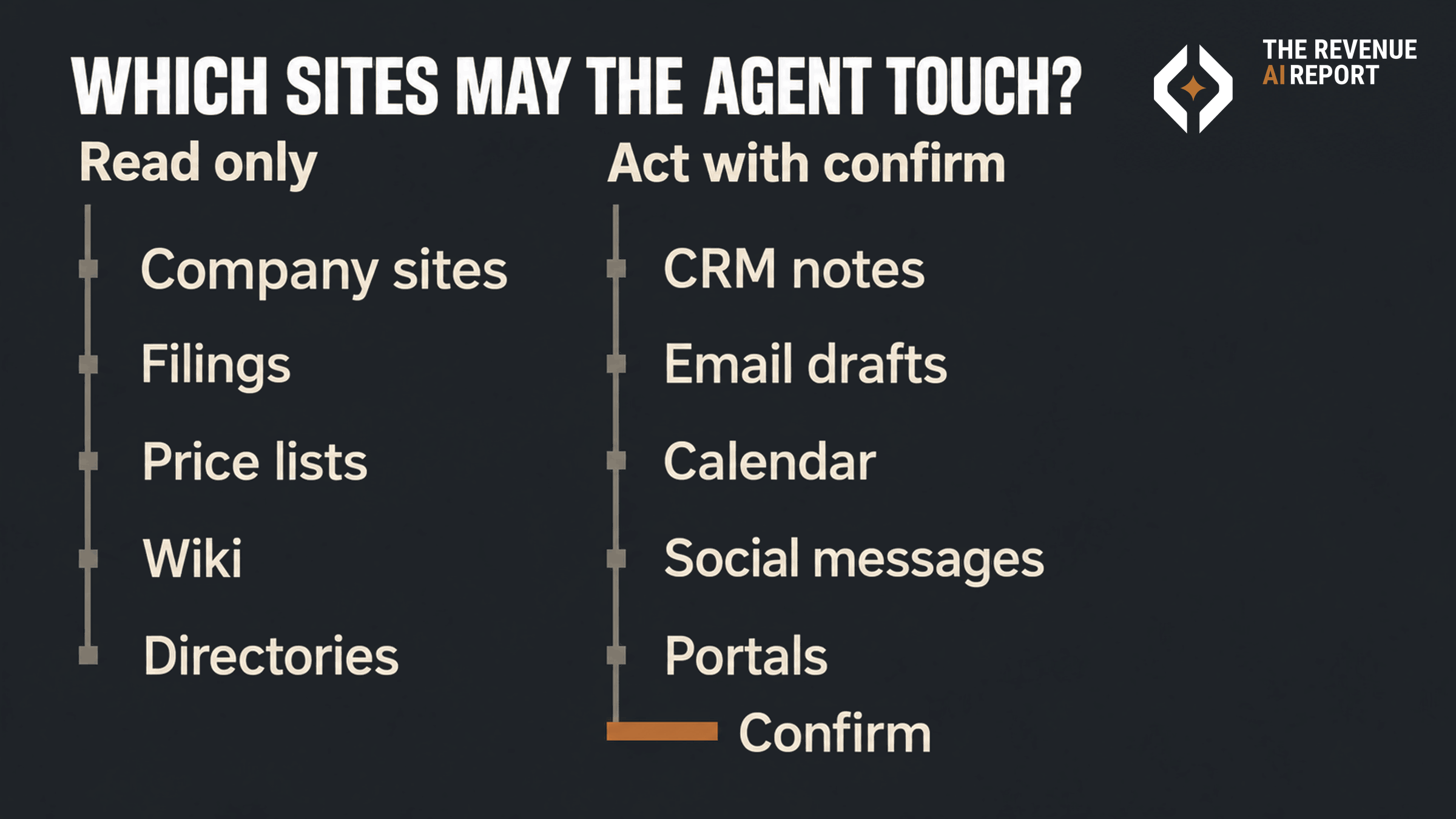
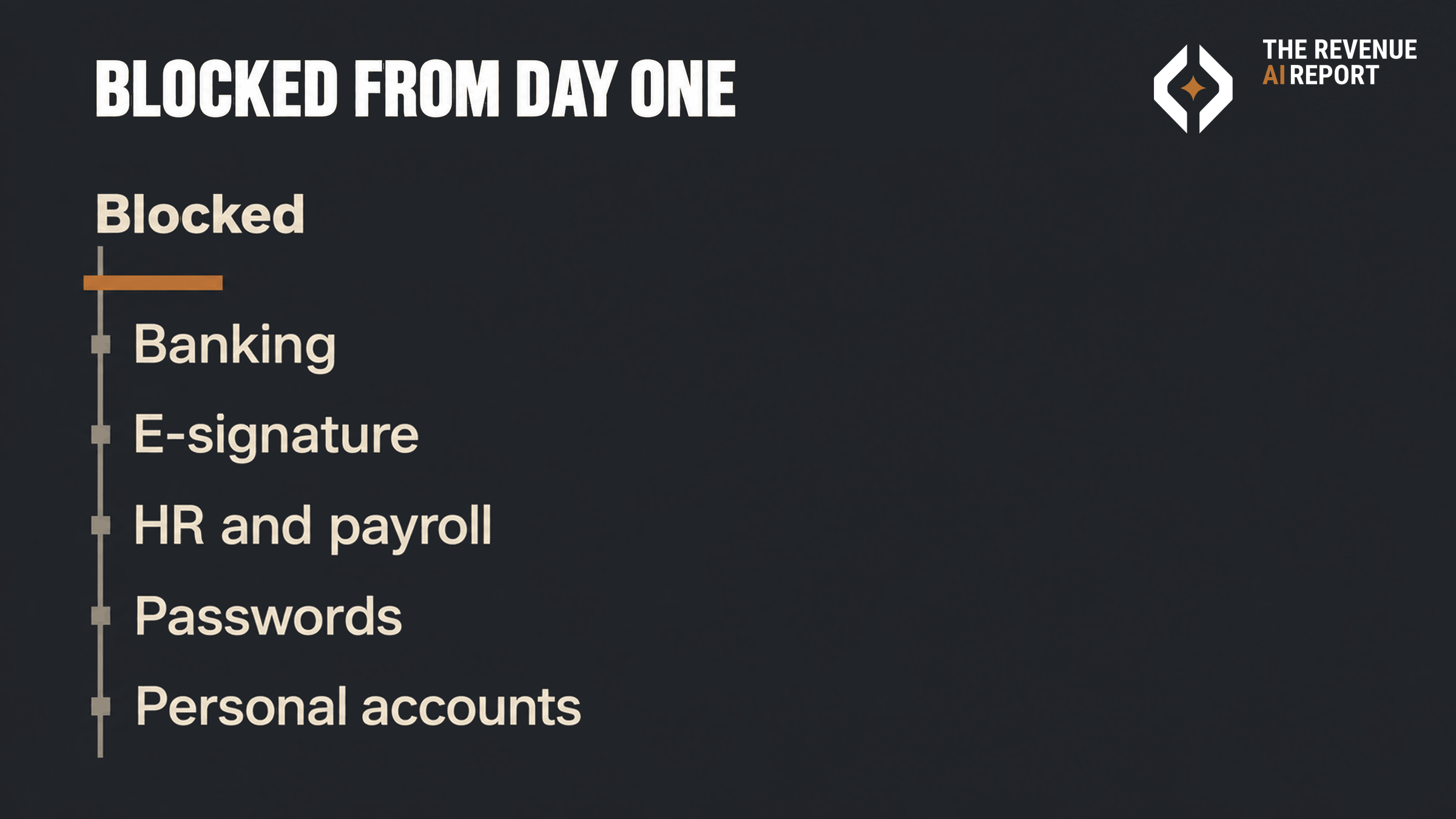
| Read only | Act with confirm | Blocked |
|---|---|---|
| Public company websites and news | Your CRM: notes, tasks, contact details | Banking, payments and expense tools |
| Industry publications and public filings | Email: drafts the rep reviews and sends | E-signature and contract tools |
| Your own published price lists and product docs | Calendar invites | HR, payroll and benefits |
| Internal wiki and knowledge base | Professional social networks: messages and connection requests | Password managers and admin consoles |
| Public directories and association listings | Customer and partner portals, registration forms | Personal accounts on work devices |
How to apply each column:
- Read only. The rep may allow these sites. Tasks are phrased as read, summarize or compare. Nothing typed, submitted or downloaded.
- Act with confirm. Allow once, per task. Never "allow for this site." Every task ends with an instruction to stop before saving, sending or submitting, so the rep reviews and clicks. The Verge lists OpenAI's own sample prompt for forms: "fill out the registration form, and stop before submitting."
- Blocked. Add the domains to the blocklist in Settings > Computer Use. IT can publish the list; reps load it on day one.
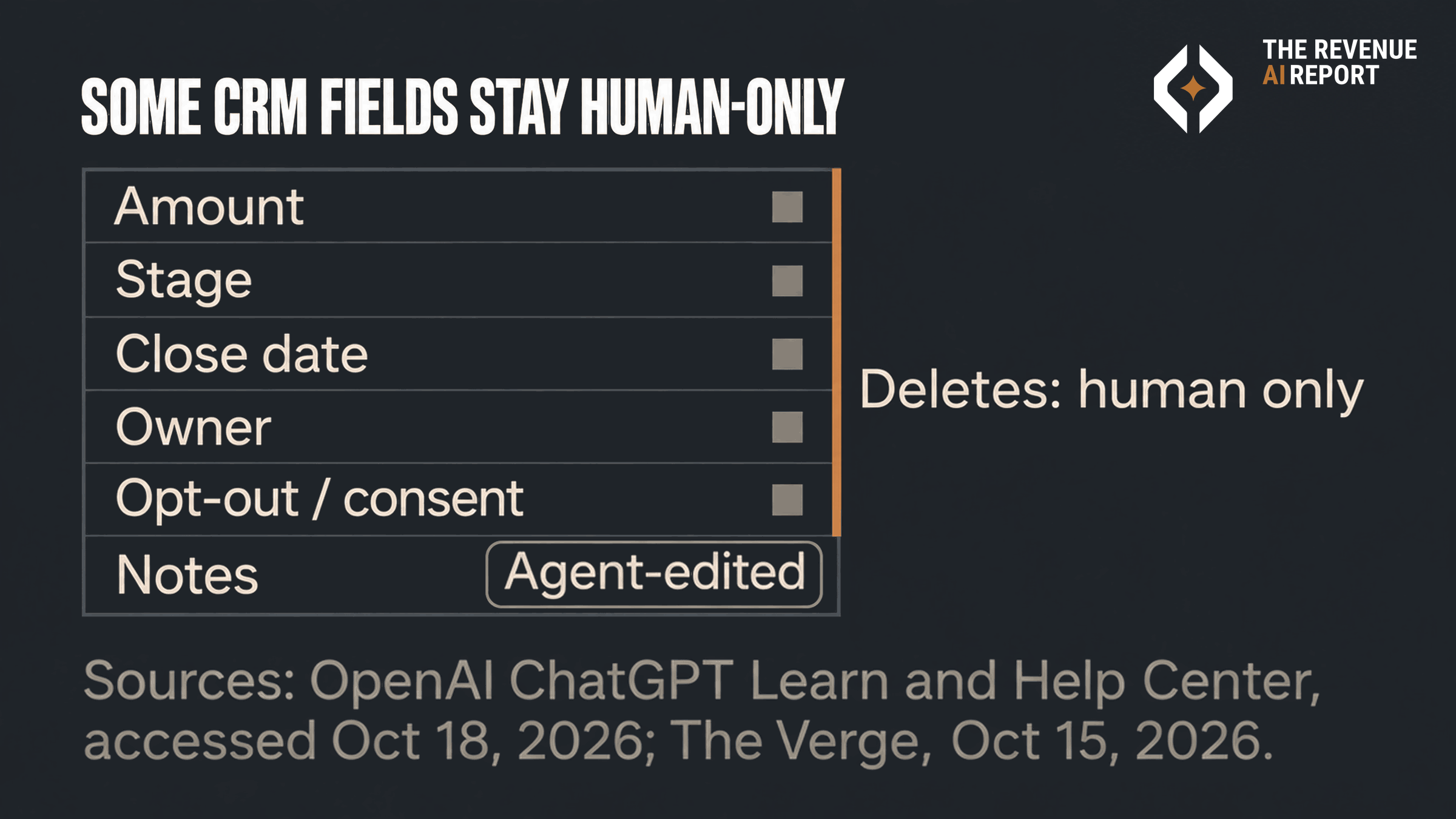
Inside your CRM, some fields stay human-only even under confirm: deal amount, stage, close date, owner, and any email opt-out or consent field. Deletes stay human-only everywhere.
One limit to plan around. Site controls work by host. If your CRM's admin pages share a host with its records, a block cannot separate them. Handle that with CRM permissions on the rep's user profile.
The "agent-edited" note convention
Every agent write in your CRM gets one line, added by the agent as part of the task and checked by the rep before saving:
Agent-edited | ChatGPT browser | [date] | approved by [rep] | chat: [chat title]
If your CRM supports custom fields, add an "Agent edited" checkbox on the objects reps touch most, and have the agent tick it. RevOps can then report on agent edits by field, rep and week, and spot a field that agents change often and reps later reverse. Reps keep the chat for as long as your record policy requires, so a disputed edit can be traced back to its instruction.
The risk in this design
A prompt for every new site and a confirm on every write add clicks. Reps who face too many prompts may start choosing "allow for all sites" just to make them stop, which removes the protection the prompts provide. Keep the act column short, publish the blocklist so reps never see prompts for those sites, and put "never allow for all sites" in the written rules. Where your workspace has admin site controls, IT can also enforce that rule in the admin settings. OpenAI also tells users to "treat page content as untrusted context," because a page can carry text meant to steer the agent, so confirm steps matter most on sites that take outside input, such as inboxes and portals.
Two composite examples outside software
These are composites built to show the moves. Neither is a reported case.
A regional bank's commercial lending team. Relationship managers use the extension to research borrowers on public sites and draft call notes into the bank's CRM. Notes and tasks sit in the act-with-confirm column. Loan amount and pipeline stage stay human-only. Online banking and the document-signing portal go on the blocklist on day one. Every note carries the agent-edited line, and the sales operations lead reviews agent edits weekly.
A building-products manufacturer's field sales team. Reps ask the agent to fill dealer portal forms and update contact details after site visits. Portal forms run under confirm, with every task ending at "stop before submitting." Outbound messages to contractors stay drafts until the rep sends them. The marketing leader owns the outbound rules, and IT owns the extension install on company laptops.
What to do this week
Ask IT whether the extension is already installed on any company browser profile. Copy the table above, rename the site types to your actual tools, and mark the human-only CRM fields. Add the agent-edited line to your CRM note template. Share the one page with every rep before anyone types an @-mention.
Related
- Sales AI Just Moved Into ChatGPT and Claude. What Can It Read, Write, and Prove?
- Mercury MCP: Approve AI Payment Requests in Mercury
- Aligned Put an AI Agent Inside the Deal Room. Approve Every Change Before the Buyer Sees It.
- Who Answers When an AI Agent Gets It Wrong?
Sources
- OpenAI, ChatGPT Learn, "Browser extension," accessed Oct 18, 2026. Setup, site permissions, allowlist and blocklist, extension permission prompt, data storage: learn.chatgpt.com
- The Verge, "ChatGPT can peek at your Chrome tabs now," Stevie Bonifield, Oct 15, 2026: theverge.com
- OpenAI Help Center, "Manage browser and computer use in your Enterprise workspace," accessed Oct 18, 2026: help.openai.com
- OpenAI, ChatGPT Learn, "ChatGPT Work local security," accessed Oct 18, 2026. Managed Browser Use policies and the Chrome extension: learn.chatgpt.com
Frequently asked questions
- Can ChatGPT update my CRM through a rep's browser?
- OpenAI's documentation says the ChatGPT browser extension can read or act on sites where the user is already signed in. A rep signed in to your CRM could ask it to make updates, inside the rep's own session.
- Does ChatGPT ask before it uses a website?
- By default, yes. It asks before interacting with each new website, based on the host name. The user can allow once, allow for this site, allow for all sites or decline. OpenAI labels allow for all sites as elevated risk.
- Who should own the ChatGPT browser extension policy?
- Split it. IT owns installing and allowing the extension and its browser permissions. The revenue leader owns which CRM fields an agent may write and the rules for outbound sends.
- How do I tell agent edits from rep edits in my CRM?
- The agent works in the rep's session, so change history will likely show the rep. Add an agent-edited note line with the date, approving rep and chat title, plus an "Agent edited" checkbox if your CRM supports custom fields.
- How is this different from an MCP connector?
- A connector is an integration someone installs and can review. The browser extension has no separate connector to install or review, because the agent acts through the rep's own login.
Hiring for revenue roles?
Post your sales, marketing, RevOps or enablement opening where revenue leaders read every week. One 30-day post is $199. Three featured posts are $299/mo.
Keep reading
Playbook
Who Answers When an AI Agent Gets It Wrong?
Wharton/GBK's Oct 2026 survey splits blame for agent errors four ways, and no single owner reaches 30%. Name an owner for each class of action before an agent acts.
Playbook
LOPAFT in Action: Two Teams, the Tools They Already Have, and the Climb to Mastery
Most teams run a weekly training and then wonder why nothing sticks. People sit through the session, nod along, and go back to doing the job the old way. Their skills don't improve. The weekly training is one piece of what it takes. Five other pieces are missing, and a team needs all six to become high-performing.